Sunday, 6 October 2024

Creating Custom Functions in Excel to Concatenate Strings and Use Them Across All Files

Excel is a versatile tool that allows users to manipulate data efficiently. One of the powerful features of Excel is the ability to create custom functions (User Defined Functions or UDFs) to perform specific tasks, such as concatenating strings. In this blog post, we will go through the steps to create a custom function that concatenates strings and how to use it across different Excel files.

What Are Custom Functions?

Custom functions allow you to extend Excel's capabilities by writing your own formulas. You can create functions that perform calculations or manipulate data in ways that built-in functions may not cover.

Step-by-Step Guide to Create a Custom Concatenate Function

Step 1: Open the Visual Basic for Applications (VBA) Editor

  1. Open Excel.

  2. Press ALT + F11 to open the VBA editor.

Step 2: Insert a New Module

  1. In the VBA editor, right-click on any item in the Project Explorer.

  2. Select Insert > Module.

Step 3: Write Your Custom Concatenate Function

  1. In the new module, write your custom function using the following format:


Function C_Concatenate(ByVal mask As String, ParamArray tokens()) As String
    Dim counter As Long
    For counter = 0 To UBound(tokens)
        mask = Replace(mask, "{" & counter & "}", tokens(counter))
    Next
    
    MyInterpolation = mask
End Function

We can name the method anything we like. I recommend prefixing the methods with something common. This will help in finding your custom methods easy.  

Step 4: Save Your Workbook

  1. Save your workbook as a Macro-Enabled Workbook (.xlsm format).


Using Your Custom Concatenate Function

Step 1: Use the Custom Function in Your Worksheet

  1. Go back to your Excel worksheet.

  2. In any cell, use your custom function like this:

    =C_Concatenate("Test {0} {1} ", "Hello", "World")

Step 2: Use Your Custom Function in Other Files

To use your custom function in other Excel workbooks, you can either copy the module or create an Excel Add-in.

Option 1: Copy the Module to Other Workbooks

  1. Open the workbook where you want to use the function.

  2. Open the VBA editor (ALT + F11).

  3. Copy the module with your custom function by right-clicking on it and selecting Export File.

  4. In the new workbook, right-click Modules in the Project Explorer and select Import File. Choose the exported module.


Option 2: Create an Excel Add-in

  1. Open the workbook with your custom function.

  2. Save it as an Excel Add-in (.xlam format) by selecting File > Save As and choosing the add-in format.

  3. Install the add-in by going to File > Options > Add-ins, selecting Excel Add-ins from the Manage dropdown, and clicking Go.

  4. In the Add-ins dialog, click Browse and select your .xlam file.

Step 3: Use the Function in Other Workbooks

Once the add-in is installed, you can use your custom function in any Excel file by typing it in as you would with any built-in function.

Conclusion

Creating custom functions in Excel to concatenate strings can save you time and enhance your data manipulation capabilities. By following the steps outlined in this post, you can easily create, save, and use your custom concatenate function across multiple Excel files. Enjoy streamlining your Excel tasks!

Wednesday, 2 February 2022

Find and copy files updated after certain timestamp

The ask was simple. I had to find the files which are updated post a timestamp lets say this new year i.e. 01/01/2022. And then copy these files to a different folder. Ideally, it can be done manually in few mins but due to bad habit of over-engineer things, we landed up with the script. 

The reason it turned out to be a really useful script because - 
  1. There were hundreds of folder and thousands of file to work with. 
  2. It extracted the files while retaining the original folder structure. Which means that we can paste this folder back anytime we want and it will only updated the extracted files. 
Sample script 
  $cutOff = Get-Date '01/01/2022 00:00' 
    $source ="YOUR\SOURCE\FOLDER\LOCATION\HERE" 
    $destination = "YOUR\DESTINATION\FOLDER\LOCATION\HERE" 
  #Below line fetches all the files | Then check the last updated time | Then it loops through all the files 
  Get-ChildItem $source -File -Recurse | Where {( $_.LastWriteTime -ge $cutOff)} | ForEach { 
      #Extract the full directory path without file name 
     $actualSource = Split-Path $_.FullName 
    #Replace the root source path with root destination path in order to get proper folder structure
     $actualDest = $actualSource.Replace($source, $destination) 
    #copy file from source to destination 
     robocopy $actualSource $actualDest $_.Name 
}

Sunday, 5 March 2017

Introduction to R

One fine Sunday evening, I was having a casual conversation with my friend, Avinash. He is an R-certified trainer and is providing training for past 2 years. His main area of expertise is in Bio-medical field. He has also assisted/helped students pursuing their Ph.D. in medical research. Looking at his expertise, I have invited him to write some blogs on R here. Hope, we will see more quality content in future for R

Being a Microsoft stack developer, I never really took a keen interest in his technology stack. But then he told me about how Microsoft is supporting R since 2014 and that Microsoft has their own flavor of R.
Microsoft R Open, formerly known as Revolution R Open (RRO), is the enhanced distribution of R from Microsoft Corporation. It is a complete open source platform for statistical analysis and data science.                                                      -- excerpt from the website
So, after his half an hour lecture filled with inspiration, and a couple of hours of googling and youtube-ing, I decided to have at least basic idea about R. It sure looks like one of the top technology for data analysis in the market. Needs no extra settings. Download R-Studio or editor of your choice, and you are ready to get your hands dirty. More thorough articles will be published soon(hopefully by Avinash), But I would focus on the points which took me a while to run or the concepts which were difficult to grasp. Before we move ahead, let me warn you that R is not your regular programming language. It is very crisp and only for data analysis purpose(IMHO).

As R is for data analysis, very first thing you want to have "data" to work upon in your environment. Let's assume, we have a file called aapl.csv which contains daily closing prices of Apple's stock, Each line on the sheet contains a date and a closing price separated by a comma. The first line contains the column headings (Date and Close).to load CSV data in a variable. If we have your file in the current working directory, we can simply use this command.
read.csv - Reads a file in table format and creates a data frame from it, with cases corresponding to lines and variables to fields in the file. 
Output -

To know your working directory (and where you need to put the CSV file), try getwd()
getwd - getwd returns an absolute filepath representing the current working directory of the R process; setwd(dir) is used to set the working directory to dir.

To load files which are not in our working directory, use fully-qualified-file-path instead.


To know about any function in details, use ?FunctionName or help(FunctionName) . For example, to know about head() and tail(), we can use ?head or help(tail) in R-studio.
Returns the first or last parts of a vector, matrix, table, data frame or function. Since head() and tail() are generic functions, they may also have been extended to other classes.
Now that we have data with us, we can do various things and display data in various graphs, charts etc. Data visualization is one more awesome feature of R.
That's it for now. I guess, I will get stuck in R more often than ASP.Net and will have more to explore and write.

As always, feel free to provide your valuable suggestions and comments.

Saturday, 7 January 2017

Automate Excel Operations -2 - Deal with excel using Microsoft Interop


This is the second post of the series - "Automate Excel Operations".
If you wish to take look at previous article, here is the list -
  1. Read Excel Data into DataTable
In this post, we will create some of the functions to deal with excel.
But before jumping to that, We will create a class "InteropHelper.cs". This class will act as a wrapper to interact with actual Interop DLL provided by Microsoft.


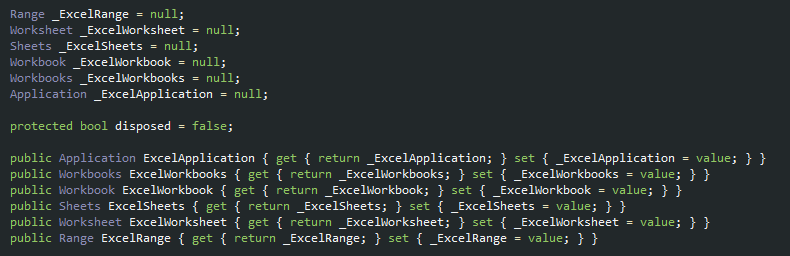
Add some Interop properties in this class. This will help us to dispose of all the objects related to Interop DLL. It is very important to dispose the Interop objects properly or else we can get into some serious trouble. We will come to the dispose part a few moment later. These properties are just the one we needed for this post. We can add as many as we require.


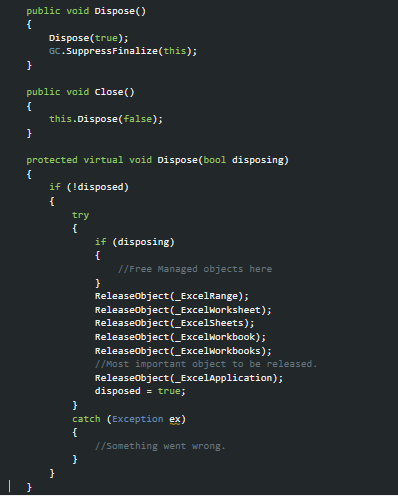
And here comes the most important part IMO. Disposing of the objects. If we don't dispose of them properly, there will be an excel.exe running each time we open an excel file with Interop.So do whatever you want, don't forgot to dispose of all the properties you have declared in your code.


Below is the definition of ReleaseObject(). This is how we dispose of ComObject


So let's go with the first one.
1. CheckIfSheetExists - This function allows us to check if the desired exists in the excel file before doing any other operation. This function helps us to avoid the non-informational "HResult" exceptions getting thrown from Interop DLL, I will post the exact exception message once I get one. :-)


2. GetFirstSheetName - In many cases, while reading data from excel, if the user hasn't passed sheet name in function, or first sheet name is not fixed, Use this function to get the name before reading the excel.


3. GetLastRowColumnIndex - To get the value of last row/column where data is present in excel sheet. Note following points -
  • This function does not take into consideration hidden row/column in the sheet. 
  • We remove the filter before calculating the row/column to consider all the data.
  • Blank cells(with no data) are also taken into consideration. (Sometimes, we accidentally add blank rows/columns. For us, there is no data but excel consider these cells as actual data). Try removing unwanted cells if the count is not as expected.


4. DeleteSheets - To delete the sheets in excel file. Keep in mind that we can't just delete all the sheets in the excel. There should be at least one sheet available. That's why we have "forAll" and "defaultSheetName" parameters. Check description in the image below -


5. SetSheetVisibility - To show/hide the sheets in excel file. Keep in mind that we can't just hide all the sheets in the excel. There should be at least one sheet visible. That's why we have "forAll" and "defaultSheetName" parameters. Check description in the image below -


Tuesday, 27 December 2016

Automate Excel Operations -1 - Read Excel Data into DataTable


Disclaimer - Neither Microsoft nor I advise to automate MS Office operations using Interop DLL

But then we don't have much of a choice when it comes to automating such operations. At least, I am not aware of any such tool at the time of writing this post.

Note - Before we proceed any further, let me tell you, from here on, whenever I say "Data", I am referring to tabular data in excel sheet until stated otherwise.

I am planning to write multiple posts and will try to cover one topic in each post. So let's start with the very first point - How to read data from excel file.

Let's start by creating an empty solution "FokatRnd" and adding an empty class project "CustomInteropHelper" to it. Now add a new class "ExcelHelper.cs" to this. To read data from excel file, we don't need any special tool. "System.Data.OleDb"  namespace will solve our purpose easily.

Declare a connection string that will be passed to OleDbConnection class to create a connection.

public const string EXCEL_CONNECTIONSTRING = "Provider=Microsoft.ACE.OLEDB.12.0;Data Source={0}; Extended Properties=\"Excel 12.0 Xml;HDR={1};IMEX=1\";";
As you might have noticed, we are using 2 placeholders in the above connection string.
1. Data Source={0} ; - Fully qualified path of the excel file.
2. HDR={1} ; - This boolean value(Yes/No) will inform OleDbDataAdapter whether it should treat first row as table header or not.

Next, we will use OleDbDataAdapter to fill the DataTable object with results. DataTable is part of "System.Data" namespace so we don't need to include any other namespace for now. We need to pass the select query into this OleDbDataAdapter object.

string selectQuery = "select * from [SheetNameHere$]";

We need to pass the sheet name of the excel file from which we want to read the data. "*" is used to read all the columns. The query syntax is pretty much the same as SQL query. Take a look at the final piece of code that will read tabular data from specified excel sheet.

public static DataTable LoadDataFromExcel(string fileName, string sheetName,bool considerFirstRowHeader = true)
{
    string connection = string.Format(EXCEL_CONNECTIONSTRING, fileName, considerFirstRowHeader ? "Yes" : "No");

    DataTable objDataTable = new DataTable(sheetName);

    using (OleDbConnection objOleDbConnection = new OleDbConnection(connection))
    {
        OleDbDataAdapter dataAdapter = new OleDbDataAdapter();
        objOleDbConnection.Open();
        string selectQuery = "select * from [SheetName$]";
        dataAdapter = new OleDbDataAdapter(selectQuery, objOleDbConnection);
        dataAdapter.Fill(objDataTable);
        dataAdapter.Dispose();
    }

    return objDataTable;
}
And, that's it. This function returns a DataTable which contains all the data in excelsheet. We can use this tabular data as per our requirement. Go ahead, Give it a try and as always, feel free to improve this article by providing your valuable suggestions and comments.

Saturday, 6 December 2014

Publish Visual Studio Project from Command Line

I have been thinking about this for a long time and finally figured it out. In my current project, our visual studio solution has almost 50 projects. As with any other project, we need to publish it daily and deploy it on the Development Server. Being the laziest developer in the team has its own advantages. I was never assigned to give deployment to the server. :-) But looking at my fellow developers publishing 20+ projects, right clicking on each project, checking publish location, waiting for it to publish then moving on to next project; sometimes removing unnecessary files also. It was such a pain to watch them doing this again and again; forget doing it myself.

So I thought, why not try to create a batch file which can do all this stuff automatically with just one click. "MSBuild.exe" was the key to this problem. So, I created a simple batch file with this command.

YOUR\MSBUILD.EXE\LOCATION\msbuild.exe YOUR\PROJECT\LOCATION\ProjectName.csproj

For example :
C:\windows\Microsoft.Net\Framework64\v.4.0.30319\msbuild.exe 

MyProject\Location\ProjectName.csproj /p:Configuration=release;DeployOnBuild:=False;PackageAsSingleFile=True;Platform=ANYCPU;outdir=YOUR\DESTINATION\FOLDER\PATH;
Don't forget to change the folder location while executing the command.
The /p here denotes the properties related to MSBuild.exe. These properties can be configured as per requirement. For me, the most important property is <i>outdir</i>. This property set the location of the folder for Published Folder.

Once you run this command( if there is no build error), you will find the files it location mentioned in 'outdir' folder. So everything is plain and simple. But one thing was not good for me. All the contents were placed inside _PublishedWebsites folder which was not acceptable for me for no reason. :-)
So I wrote one more command XCOPY to copy contents from_PublishedWebsites folder to some other folder to have cleaner output directory.
XCOPY OUTDIR\Location\_PublishedWebsites\* Final\Output\Location /S /Y
Here /S allow us to copy entire folder structure and
 /Y  suppress prompting the confirmation.

Well, everything was set and I gave that my batch file to my fellow colleague. When he executed my batch file into his system, and checked his output folder. Every published folder was empty to my surprise. When I cross checked everything, I found that he has written some Post Build event in his project property. In that, he has used $SolutionDir variable which my batch file was unable to find.

So, I updated my batch file to pass SolutionDir in the property section of MSBuild.exe. Updated version of the batch file looked more like this.
C:\windows\Microsoft.Net\Framework64\v.4.0.30319\msbuild.exe 

MyProject\Location\ProjectName.csproj /p:Configuration=release;DeployOnBuild:=False;PackageAsSingleFile=True;Platform=ANYCPU;outdir=YOUR\DESTINATION\FOLDER\PATH;SolutionDIR=Your\Solution\Folder
With the above changes, I updated the batch file for maintainability by using variables. So final version of the batch file was like this -
@echo off
:: Set Project Location here
SET ProjectLocation="YOUR\PROJECT\LOCATION"

:: Set tempLocation here. This location is used for Publish Location.
SET TempLocation="YOUR\TEMP\LOCATION"

:: Set Final Location here. This location is used for Final Content Location. 
SET FinalLocation="YOUR\FINAL\LOCATION"

:: Set Solution Directory Location here.
SET SolutionDIR="YOUR\SOLUTION\FOLDER"

:: Create if folder do not exist.

IF NOT EXIST %TempLocation% MD %TempLocation%
IF NOT EXIST %FinalLocation% MD %FinalLocation% 

C:\windows\Microsoft.Net\Framework64\v.4.0.30319\msbuild.exe 

%ProjectLocation%\ProjectName.csproj /p:Configuration=Release;DeployOnBuild:=False;PackageAsSingleFile=True;Platform=ANYCPU;outdir=%TempLocation%;SolutionDir=%SolutionDIR% 
 

:: Copy Required files to Final Location
XCOPY %TempLocation%\_PublishedWebsites\* %FinalLocation% /S /Y 

This is how I did it. I know, it can be done using PostBuild event also. I even tried it but for some reason, it didn't worked well for me. I also know that there are some awesome tools which can perform this same task more efficiently. But, I want it do this way only. Any suggestions? 

Wednesday, 5 November 2014

Override jQuery function for custom behavior (say getter and setter)

A new day and a new, very intelligent idea from the client which he presented to us with great confidence. After we are done with the development of the page, he told us to change the display format of the currency on the change and that to on some of the labels which display amount. So the amount 1000000.00 should look something like 1,000,000.00 in labels. Obviously, we perform some calculation based on these label values. So setting and getting the values for these labels would have been a lot of changes on the script file.

As the changes were for a particular page and the requirement was likely to be change soon ( that's why we say, Experience counts :-) ), I was looking for possible solutions. My initial thought was to create two separate function. One to convert the amount into the desired format and set the value to label. And other one to fetch the value from label, remove the comma and return the numeric value. Problem with this approach was a lot of change in entire code file. There is even chances that i could have missed to call these functions somewhere.

So I thought, why not modify the default text() function of jQuery. That way, I need to write only the extended functions and without even single line of code change in file, I should be able to meet the requirements. So after a bit of efforts, I came up with this code -

<script type="text/javascript">
 
(funtion($) {
        /* Keep original function to execute later. */
        var oldTextFunction = $.fn.text;

        /* Override the jQuery function */
        $.fn.text = function(value) {
            /* Apply this code only to 'span' tags with 'format-amount' class */
            if ($(this).is('span') && $(this).hasClass("format-amount") {
                    /* Setter */
                    if (value) {
                        /* replace orignal amount with formatter amount */
                        value = value.toString().replace(/(\d)(?=(\d\d\d)+(?!\d)/g, "$1,");
                        arguments[0] = value;
                    }
                    /* Getter */
                    else {
                        /* Remove comma from the formatter text. */
                        var formattedText = '';
                        formattedText = jQuery.text(this);
                        if (formattedText) {
                            var find = ',';
                            var regex = new RegExp(find, 'g');
                            formattedText = formattedText.replace(regex, '');
                        }
                        return formattedText;
                    }
                }
                /* Call original function */
                return oldTextFunction.apply(this, arguments);
            };

        })(jQuery);
 
</script> 

That's how, I found the quick fix which is working pretty good till now. Ofcourse, there will be many better solutions to my quick fix. Do tell us how we can implement that.

Sunday, 19 October 2014

Extract All sheets inside a folder to individual Excel File


It was supposed to be a peaceful Friday night in office. As I was about to leave the office on time, I was bombed with a very stupid task. Actually, We had some 8-10 files related to some important data and each Excel file contained 10-15 sheets. The task was to extract all those sheets into individual excel file. For me, to do this manually was like digging the well with spoon. It would have taken hours to complete the task. So I thought of trying hands on VBA. It was pretty easy and quick to do this with VBA and within half hour, I was done with my code and task to Extract sheet to files. (Note that I have written the code from scratch. I found below mentioned code segments on some sites and adjusted it to meet my goal.) Lets see how we did that.

First, I tried to extract the excel sheets for the single Excel file.(Please note that i have written this code. Copied it from this location)
Sub Splitbook()

Dim xPath As String

'Pick current excel path
xPath = Application.ActiveWorkbook.Path

Application.ScreenUpdating = False
Application.DisplayAlerts = False

'Loop through all sheets
For Each xWs In ThisWorkbook.Sheets
    xWs.Copy
    
    'Save excel file with sheet name
    Application.ActiveWorkbook.SaveAs Filename:=xPath & "\" & xWs.Name & ".xlsx"
    Application.ActiveWorkbook.Close False
Next

Application.DisplayAlerts = True
Application.ScreenUpdating = True

End Sub


Well, that works pretty straight. It extracted all the sheets into files(naming sheet name as file name) Now, the next challenge was to loop through all the files in a folder, process each file and loop through its sheets. For that, I created a new Macro-supported file (.xlsm) file. Pressed [Alt] + [F11]. This opens up the code window. In that, go to Menu -> Insert -> Module and pasted these lines -
Sub SplitAllBook()

Dim fso As Object
Dim xPath As String
Dim wbk As Workbook
Dim Filename As String

Application.ScreenUpdating = False
Application.DisplayAlerts = False

xPath = "YOUR_SOURCE_FOLDER_NAME_HERE"

'Pick only ".xlsx" files. In case you want to process older version of files, please change the extension to .xls
Filename = Dir(xPath & "*.xlsx")

'Loop through all files
Do While Len(Filename) > 0  'IF NEXT FILE EXISTS THEN

    Set wbk = Workbooks.Open(Filename:=xPath & Filename)

    'Use fso to remove the extension from file name. We used this name to Name excel file.
    Set fso = CreateObject("scripting.filesystemobject")
    Dim tempFileName As String
    tempFileName = fso.GetBaseName(Filename)
    
    'Loop through all sheets
    For Each xWs In wbk.Sheets

        xWs.Copy
        'I have used naming convention as - OriginalFileName_SheetName.xlsx to avoid name conflict. You can put any logic you want.
        Application.ActiveWorkbook.SaveAs Filename:="YOUR_DESTINATION_FOLDER_NAME_HERE\" & tempFileName & "_" & xWs.Name & ".xlsx"
        Application.ActiveWorkbook.Close False

    Next

    wbk.Close True
    Filename = Dir

Loop

Application.DisplayAlerts = True
Application.ScreenUpdating = True

End Sub

With that, we are done. Run you macro and you should get all the sheets created as new excel files in the destination folder.

Tip -
 
I faced a couple of problems while running the code.
1. Unique Name for files - Figure out a way to provide a unique name to your file or else the macro will throw the error.

2. Folder Path - Define your folder path correctly with all the "\" etc wherever required. In case a problem occurs, a quick debug will solve it easily.

Sample Code

Thank you.

Friday, 11 January 2013

Extract OLE Objects from MS Access to Disk


Problem Statement - 
Fetch the documents(images, .pdf, .doc etc.) from the MS Access(OLE Object) and store it on disk.
Initially, i thought it would be quite easy. Being a C# developer, i quickly began with the VS2010. I  already had the MS Access DB which has a table with several columns. But my focus was on only few such as
  • ID - Primary Key - Int
  • Name - text
  • Structure - OLEObject (Contains images)
  • Certificate - OLEObject (Contains PDFs)
Within half an hour, i had all the information in the DataTable with OLEObject as byte[]. Now, the point was how would i know the format of the images in the Structure columns. Because if we view the Access, it simply displays the type of document ( Bitmap Image for .bmp, Microsoft Word Document for .doc etc.), no file or extension name. Moreover , for other types, it just display the text as "Package".
To start with, i assumed that System.Drawing.Image
might have the detailed information  once i convert the byte[] to MemoryStream and assign this to Image Object.
byte[] bPhoto;//Assign it with data.

int id;//Primary key - Used as the name for the image here.

/*We have also hard-coded the extension as .png for now.*/

 using (MemoryStream stream = new MemoryStream(bPhoto)){
       System.Drawing.Image tempImage = System.Drawing.Image.FromStream(stream);
       string FName = tempPathPhoto + Path.DirectorySeparatorChar + Convert.ToString(id) + ".png";
       tempImage.Save(FName);
  }
As soon as i executed the code to debug and analyze the tempImage data, it threw an exception on this line -
System.Drawing.Image tempImage = System.Drawing.Image.FromStream(stream);
and the exception was - Parameter is not valid.  
I googled it and found various links to get rid of that. But, those solutions didn't worked for me. So i tried a couple of other ways to write the files such as - 

FileStream file = new FileStream(tempPathPhoto + Path.DirectorySeparatorChar + Convert.ToString(id) + ".GIF", FileMode.Create, System.IO.FileAccess.Write);
file.Write(bPhoto, 0, bPhoto.Length);
file.Close();
and
File.WriteAllBytes(tempPathPhoto + Path.DirectorySeparatorChar + Convert.ToString(id) + extension, bPhoto);
Using the above specified ways, i was able to write the file on my disk. Hmmm.. That wasn't tough.    But these files didn't open as expected. The Image viewer displayed it as the crashed image and the PDF were displayed as corrupted as well. I was on Zero again. 

After googling with some new keywords, i landed on this page. I found more than 50 blogs and sites pointing to this link. The first thing I (and most probably whoever visited) noticed was that the site is out of support. But don't worry, the download link and the project works just fine. Run the Access page and fill all the fields accordingly and viola!! It extracted the files perfectly. Nice work Mr. Leban.

All my .bmp,.pdf files were there in the correct place. But wait!! What about the other file format. Those who had banged their head on wall might have noticed that when we insert the .bmp file, the field value says "Bitmap File Format" but when we insert other type of images, it display "package". When you try to extract the data with "package" name, the code runs smoothly but the files were created with ".pak" extension and that too didn't opened up correctly. So, Is the issue with the images uploaded?? - I don't think so as the Access form displays the images perfectly.  So, what is the issue??

Lets see the code. I went through almost all the lines of my interest especially the fGetContentsStream(). Going through the  "package" case, Mr. Leban mentioned all the bits he has added to the "lPos" variable  so as to get the correct data from the file. I don't know if this is the case only with me because thousands of people have used his code and if there is some issue there, someone must have pointed it out. Anyways, i analyzed some of the files that were getting displayed as "package" and found that before extracting the file information( such as File Name, Full Path etc.), the lPos value should be set to "84".
So i reinitialize the lPos just before the following line of code in fGetContentsStream() "Package" case - 

'Reset the lPos
lPos = 84

' Package original File Name
Do While bCurValue <> 0
    bCurValue = arrayOLE(lPos)
    FileNamePackage = FileNamePackage & Chr(bCurValue)
    lPos = lPos + 1
Loop
This is it. Run the form again and it will extract all the OLE Object named as "package". All hail Mr. Leban.

One more issue, i faced was with MS Office 2007 Docs. For ex- .doc file would be extracted fine but the .docx file be displayed as corrupted when you try to open it.
I tried some alterations and after a while of head-banging, i got this code working - 

Case "Word.Do"
' MS Word document

sExt = "doc"
If sClassName = "Word.Document.12" Then
FileExtension = "docx"
sStreamName = "Package" ' This is important
Else: FileExtension = "doc"
sStreamName = "WordDocument"
End If
And
Select Case sStreamName

Case "CONTENTS", "Package" ' Package added by Shadab
' Contents stream in Root Storage
' Call our function in the StrStorage DLL
    lLen = GetContentsStream(arrayOLE(0), UBound(arrayOLE) - lOffSet, sStreamName)

Case "Ole10Native"
' "Ole10Native" stream in sub storage named "Embedding 1" Of Root Storage
' Call our function in the StrStorage DLL
    lLen = GetContentsStreamChild(arrayOLE(0), UBound(arrayOLE) - lOffSet, sStreamName)

Case Else
' Need to fix this to allow for other stream names other than Office Docs.
' Extract Office doc
    lLen = ExtractOfficeDocument(arrayOLE(0), UBound(arrayOLE) - lOffSet, sStreamName)

End Select

I was able to extract .docx files now. Unfortunately, the same didn't work for the other files such as .xlsx (Excel2007). Not that much important as of now but I am still looking for the workaround for this problem. Any suggestions???

Thanks
S. Shafique
Fokat RnD Team Member

Monday, 7 January 2013

Host WCF on both HTTP & HTTPS

Hi,
We have created a WCF service for one of our project a while ago. Yesterday, for some reasons, the system administrator enabled the SSL on IIS. And our WCF service stopped working with the exception -

Endpoints using 'UriTemplate' cannot be used with 'System.ServiceModel.Description.WebScriptEnablingBehavior'.


As usual, my suspect was the UriTemplate initially. I cross checked my service but everything was fine. When i gooogled this error, the symptoms(i.e. using UriTemplate with WebGet and enableWebScript tag in config file) for the error were not there in service.
So i concluded that the culprit must be the SSL. I requested them to disable the SSL for a moment and Viola.. It started working again perfectly. so my focus shifted from code error to binding with SSL. I came through this post . Just for the sake of my own records and quick reference, pasted the code here as well, as  posted by  

<system.serviceModel>  
  <services>
    <service behaviorConfiguration="MyServiceBehavior" name="JK.MyService">      
      <endpoint address="" behaviorConfiguration="WebBehavior" binding="webHttpBinding" bindingConfiguration="webBinding" contract="JK.IMyService">
        <identity>
          <dns value="localhost" />
        </identity>
      </endpoint>
      <endpoint address="" behaviorConfiguration="WebBehavior" binding="webHttpBinding" bindingConfiguration="webBindingHTTPS" contract="JK.IMyService">
        <identity>
          <dns value="localhost" />
        </identity>
      </endpoint>
      <endpoint address="mex" binding="mexHttpBinding" contract="IMetadataExchange" />      
    </service>
  </services>    
  <behaviors>    
    <serviceBehaviors>      
      <behavior name="MyServiceBehavior">
        <serviceMetadata httpGetEnabled="True" httpsGetEnabled="true"/>
        <serviceDebug includeExceptionDetailInFaults="true" />
      </behavior>      
    </serviceBehaviors>    
    <endpointBehaviors>
      <behavior name="WebBehavior">
        <webHttp/>
      </behavior>
    </endpointBehaviors>    
  </behaviors>  
  <bindings>
    <webHttpBinding>
      <binding name="webBinding">
        <security mode="None">
          <transport clientCredentialType="None" />
        </security>
      </binding>
      <binding name="webBindingHTTPS">
        <security mode="Transport">
          <transport clientCredentialType="None" />
        </security>
      </binding>
    </webHttpBinding>
  </bindings>  
</system.serviceModel>

Apply the respective changes to your config accordingly and it works like charm. A big thanks to JayaKrishna.

Thanks
S. Shafique
Fokat RnD Team Member

Friday, 28 December 2012

Code First Approach For New Database

I was trying my hands on Entity-framework. As i was completely blank on this areas, I Googled about it and found some interesting links. This link helped me to have some conceptual understanding( Though i have to read it again a couple of times to get what it actually means. )

Later, to have some practical know-how, i followed this link. I found the link on this page very useful to begin with. There are various approaches to work on. Lets begin with Code First Approach for New Database -

The page is itself the best place to follow the approach. No doubt , you won't find better details here. So whats the use of this page. I got stuck in a couple of places. (as was with my first HelloWorld program  )
  1. I was using VS2010.The tutorial do not mention to place the connection string anywhere in the code. Obviously, it was not necessary to mention it but as i ran the program with exactly the same code, this exception popped up  -
    "The provider did not return a ProviderManifestToken string."
     When i checked the details of this exception, it found that it was an error related to database connection. But where should i mention these details. First, i mentioned a connection string in the app.config.
     <add name="BlogContext" 
    connectionString="Data Source=ZZZ;User ID=XXX;Password=XXX;Initial Catalog=YYY;Persist Security Info=true" 
    providerName="System.Data.SqlClient" />

     Then i update the BlogContext class by supplying it a constructor. 
     public BlogContext()
                : base("Name=BlogContext")
            {
    
            }

    The next time i ran it. It created the tables in the DB defined in the connection string. 
  2. When we change the POCO Classes in order to change the DB. We won't get the error till the code actually hits the DB. The error indicates us to use Data Migration tool to get the changes to the Database.
    To do this, Open the Package Manager Console(Tools->Library Package Manager->Package Manager Console), And Fire the command -
      Enable-Migration
    Tip- To use intellisense, hit [tab], not [Ctrl+Space]. It's console not editor.
    Then run the command below after you have changed the classes -
    Add-Migration AddChange
    Here, AddChange  is the Name of migration which could be anything(Name it properly so that you can easily recall the changes). A file is created with the migration name where you can see all the upgrade/downgrade related changes.
    Finally, run the Update-Database command to migrate the Changes to DB.
      
Thanks,
S. Shafique
Fok at RnD Team member

Wednesday, 26 December 2012

Using view as both View and Partial View


A couple of days back, we were in a situation where we have to display the same view (say "AddTicket") as
  • View in some cases(new tab) and
  • as partial view in other(in modal pop-up).
To accomplish that, there might be various approaches but two thoughts came in my mind-
  • Create separate view and partial view (which was discarded as we would have to write the same HTML layout twice).
  • Create a Partial View and use it as View wherever and whenever required.

To do that, first create a partial view with Layout property set to "null".(Obviously)

public ActionResult AddTicket()
        {
            /*
             We are using the same as View and Partial View here.
             */
            if (Request.IsAjaxRequest()|| ControllerContext.IsChildAction)
            {
                return PartialView("PartialViewName");
            }
            else
            {

               //Set the Layout for the partial view
                return View("PartialViewName","~/Views/Shared/_Layout.cshtml");
            }
        }

Needless to say, i am expecting there should be a better approach than this. Looking forward for the suggestions.

Thanks,
S. Shafique
Fok at RnD Team member

Friday, 21 December 2012

Create ComplexType If Stored procedure returns multiple Select statements in Entity Framework


Guys, Today during our daily development we faced another big problem.
We are using Ef4(Entity Framework) in our project using EDM(Entity Data Model) approach .
The problem is that we have one stored procedure which returns two select statement in the output
For ex – Select * from emp;
                Select * from library;
1.In function import the complex type will only hold one type of object like either emp or library , so we can’t able to show result of the stored procedure .
2.If we manually execute Stored procedure query  then also it will return the result of first select.
Like this ->
var query = _cxt.ExecuteStoreQuery<TestModel>("exec testselect");

And the drawback is that EF4 is not supporting multiple select in edm.
It is available in EF5 by nugget.

Now we have come up with the result.
Here we go.

1.First we have downloaded extension for Entity Framework

2. Include that project in your project.
3.Create new class file and Create a partial class in the same name of your Entities Class
In my case
       public partial class TestDatabaseEntities : ObjectContext

Now suppose my stored procedure return as an output like this.

       Select * from tblState;
       Select * from tblCountry;
Include that extension in that file.

4.As there is two type of object returning from SP tblState and tblCountry.
So create two private readonly variable of same type.
Like this

       private static readonly Materializer<tblState> s_StateMaterializer = new Materializer<tblState>(r =>
            new tblState
            {
                id = r.Field<int>("id"),
                StateName = r.Field<string>("StateName"),
            });

        private static readonly Materializer<tblCountry> s_CountryMaterializer = new Materializer<tblCountry>(r =>
            new tblCountry
            {
                countryId = r.Field<int>("countryId"),
                countryName = r.Field<string>("countryName"),
                isActive = r.Field<bool>("isActive")

            });

5.Now Comes the Method which will return multiple record Set.

public void GetMultiple()
        {
            DbCommand command = this.CreateStoreCommand("TestSelect", CommandType.StoredProcedure); //Create the command which will call the sp.
            List<tblCountry> country;
            List<tblState> state;

            using (command.Connection.CreateConnectionScope()) //Opening Connetion
            using (DbDataReader reader = command.ExecuteReader()) // Getting Data on Data reader
            {
                state = s_StateMaterializer
                        .Materialize(reader)
                        .Bind(this.tblStates)
                        .ToList<tblState>();  //Extracting the State from the output

                if (reader.NextResult())
                {
                    country = s_CountryMaterializer
                        .Materialize(reader)
                        .Bind(this.tblCountries)
                        .ToList<tblCountry>();  //Extracting the Country from the output
                }
               
            }

        }
In my case it is void type you can change acc to your requirement.
That’s all now call this method and see the output.

Thanks
Morpheus
Fokat RND Team Member